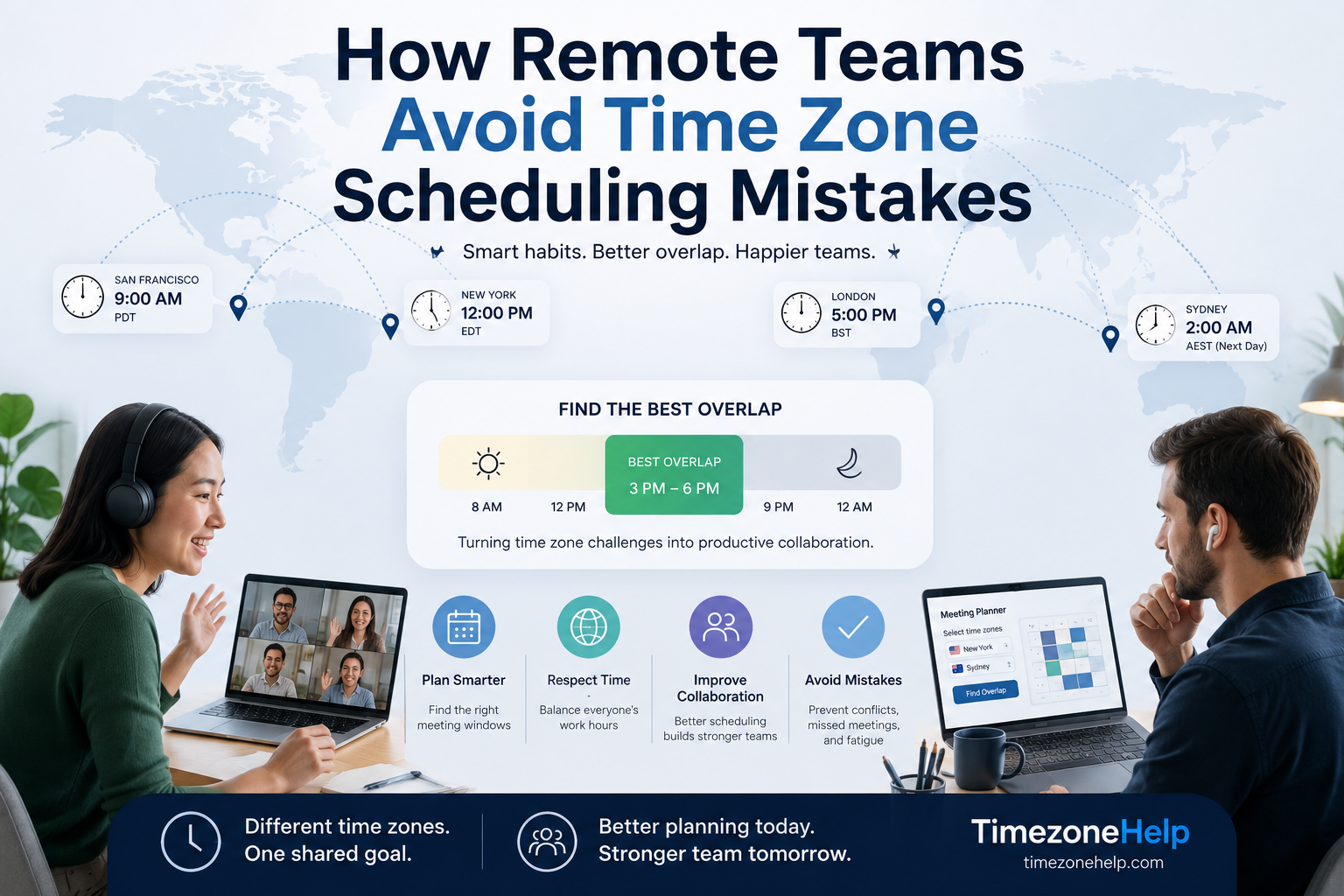
Find your team's real overlap window
Enter all your team locations and see exactly when business hours align.
The Most Common Timezone Scheduling Mistakes
Most timezone problems aren't caused by bad intentions - they're caused by a handful of recurring habits that seem fine until they aren't.
1. Using UTC offsets instead of named timezones
Setting a calendar event to "UTC−5" instead of "America/New_York" is the single most common source of recurring meeting drift. When daylight saving time kicks in, the offset changes - but the event stays fixed. Everyone who uses a named timezone sees the correct local time; the person who hardcoded "UTC−5" shows up an hour off.
2. Scheduling without checking the actual overlap
Sending a meeting invite for "10 AM" without verifying what that means in each participant's timezone. Someone in the team always ends up at 11 PM or 6 AM with no warning - and they usually say nothing the first time.
3. Anchoring the meeting time to the wrong location
When a meeting is always scheduled in the host's timezone, the host is always comfortable and the same remote participants are always inconvenienced. Over months, this quietly exhausts one side of the team.
4. Not accounting for DST transitions
A recurring weekly call that works perfectly in March falls apart in April - not because anyone changed anything, but because Australia switched clocks and nobody updated the invite. See the full breakdown in our guide to how DST affects international meetings.
5. Treating the overlap as fixed
Business-hours overlap between two cities isn't constant. It shifts by 1–2 hours four times a year for teams spanning the USA and Australia, and twice a year for most other pairs. A meeting window that works in summer may need to shift in winter.
Understanding Your Real Overlap Window
Before scheduling anything, know exactly how much shared working time your team actually has. The table below shows typical business-hours overlap for common remote team pairings - assuming 9 AM–6 PM local time on each side.
| Team Pairing | Typical Gap | Overlap Window | Verdict |
|---|---|---|---|
| New York + London | 5 hrs | 9 AM–12 PM ET / 2–5 PM BST | Comfortable |
| New York + Paris / Berlin | 6 hrs | 9 AM–12 PM ET / 3–6 PM CET | Comfortable |
| New York + Dubai | 8 hrs | 9–10 AM ET / 5–6 PM GST | Tight |
| New York + India | 9.5 hrs | 8:30–9:30 AM ET / 6–7 PM IST | Very tight |
| New York + Singapore | 12 hrs | 8–9 AM ET / 8–9 PM SGT | Edge of day |
| New York + Sydney | 14–16 hrs | 8–9 AM AEST / 6–7 PM ET | Minimal |
| London + Sydney | 9–11 hrs | 8–9 AM AEST / 11 PM–12 AM BST | Almost none |
| San Francisco + London | 8 hrs | 9 AM–10 AM PT / 5–6 PM BST | Tight |
Use the timezone overlap calculator to find the exact window for your specific team - it applies DST rules for the date you select, so the numbers are accurate rather than approximate.
Bad vs Good: Real Scheduling Examples
The difference between a meeting invite that works and one that causes confusion often comes down to a few small choices.
| Scenario | Bad approach | Better approach |
|---|---|---|
| Weekly team standup | "10 AM" (no timezone stated) | "10 AM ET / 3 PM GMT / 9 PM AEST" with a named-timezone calendar event |
| Recurring client call | Calendar set to UTC−5 (breaks in March) | Calendar set to "America/New_York" (auto-adjusts for DST) |
| Scheduling across 3+ regions | Host picks their most convenient time | Use overlap calculator first; rotate who takes the edge slot |
| Product launch call | Set for 9 AM PST - overlooks Sydney is next-day 3 AM | Check all cities, offer async recording for impossible timezones |
| End-of-quarter all-hands | Same time every quarter regardless of DST | Verify local times after each DST transition before sending |
How DST Creates Scheduling Chaos - and How to Prevent It
Daylight saving time doesn't just shift one city's clock - it temporarily changes the gap between cities, sometimes for weeks at a time. When the USA springs forward in early March but the EU doesn't until late March, the New York–London offset shrinks from 5 hours to 4 hours for about two weeks. A meeting that runs perfectly all year arrives an hour off during this window.
The problem compounds for teams spanning multiple DST transitions. A US–Australia team sees the offset shift up to four times per year: in March, April, October, and November. Each shift can move a meeting time by a full hour with no visible change to the calendar invite.
- 2nd Sunday, March: USA springs forward
- Last Sunday, March: EU / UK springs forward
- 1st Sunday, April: Australia falls back
- 1st Sunday, October: Australia springs forward
- Last Sunday, October: EU / UK falls back
- 1st Sunday, November: USA falls back
Add recurring reminders to check all global meeting times on the Monday after each of these dates. One audit per transition saves hours of confusion. For a deeper dive, read our article on how daylight saving time affects international meetings.
When to Use Async Instead of a Live Meeting
The narrower your overlap window, the more expensive each live meeting slot becomes. If your New York–Singapore team has a 1-hour overlap per day, spending it on a status update is a waste. That slot should be reserved for decisions that genuinely need real-time discussion.
A useful rule of thumb: if the outcome could be achieved by a well-written message, a recorded video, or a shared document with comments, it doesn't need a live meeting.
| Use live meetings for | Use async for |
|---|---|
| Decisions requiring back-and-forth debate | Status updates and progress reports |
| Complex problem-solving with multiple inputs | Document reviews and written feedback |
| Relationship building and 1:1s | Approvals and sign-offs |
| Real-time crisis or incident response | Announcements and FYI updates |
| Team onboarding (first few sessions) | Recurring project updates |
Teams that get this right treat their overlap window as protected time - no fluff, no status updates that could be a message. Tools like Loom (async video), Notion (shared docs), and well-structured Slack threads handle everything else.
Best Practices for Global Team Scheduling
Establish "core hours" - and protect them
Core hours are the 1–3 hour window each day where everyone is expected to be reachable in real time. Outside core hours, the expectation is async. Defining this explicitly removes ambiguity and stops the creeping habit of scheduling meetings at the convenience of whoever is most central.
Publish a team timezone reference
Keep a shared doc or pinned message in your main channel that lists every team member's city, current timezone, and working hours. Update it when people travel or relocate. New joiners shouldn't have to guess - and existing team members shouldn't have to remember who's in which city.
Send meeting links with all local times in the body
Don't make attendees convert the time themselves. Include a line in every meeting invite body like: "10 AM ET / 3 PM GMT / 9 PM SGT / 2 AM AEST (next day)." The TimezoneHelp meeting planner generates these conversions in seconds.
Rotate the inconvenient slot
If the only workable window for a US–Australia call is 8 AM Sydney / 6 PM New York, alternate which side takes the uncomfortable end. Track it explicitly - "Sydney takes early this week, New York takes early next week." Rotation only works if it's visible.
Verify times after every DST transition
After each of the six DST dates above, spend five minutes checking recurring global meetings. Look at the event in each participant's calendar. If anything shows an unexpected time, fix it before it causes a missed meeting.
Use UTC for engineering and server-side scheduling
For technical logs, API calls, cron jobs, and deployment schedules, use UTC consistently. It never changes for DST, it's unambiguous across regions, and it eliminates an entire class of "why did the deploy run at 2 AM?" confusion. For human-facing meetings, convert to named local timezones.
Find your team's real overlap window
Enter your team locations and see which hours align - with DST applied for the specific date you choose.
Recommended Scheduling Workflow for Distributed Teams
Here's a repeatable process for scheduling a meeting across timezones - whether it's a one-off or a recurring series.
- Identify all participant locations - city and current timezone, not just country.
- Find the overlap window - use the overlap calculator for the specific date, not a generic offset table.
- Pick a time within the overlap - if there is none, identify the least-inconvenient edge slot.
- Set the calendar event with a named timezone - "America/New_York", not "UTC−5".
- List all local times in the invite body - so every participant sees their local time explicitly.
- For recurring meetings: set a DST check reminder - flag the post-transition Mondays to verify local times haven't shifted.
- For impossible timezones: offer async access - record the meeting and share notes; don't require attendance at 3 AM.
Common Time Zone Pairs and Their Overlap Windows
Quick reference for the most common distributed team pairings. Use the meeting planner for exact times on a specific date.
| Pair | Best Meeting Window | Quick reference page |
|---|---|---|
| New York + London | 9:00 AM–12:00 PM ET / 2:00–5:00 PM GMT | New York–London times |
| London + Dubai | 9:00 AM–1:00 PM GMT / 1:00–5:00 PM GST | - |
| New York + India | 8:00–9:30 AM ET / 5:30–7:00 PM IST | - |
| Sydney + London | 8:00–9:00 AM AEST / 11:00 PM–12:00 AM BST | Sydney–London times |
| New York + Sydney | 8:00–9:00 AM AEST / 6:00–7:00 PM ET | - |
| San Francisco + London | 9:00–10:00 AM PT / 5:00–6:00 PM GMT | - |
Remote Team Communication Tips That Actually Help
Write in timezone-agnostic language
Avoid "this morning," "later today," or "end of week" in team messages - they mean different things to people in different regions. Instead: "by 5 PM Friday ET" or "before the end of your Thursday." Explicit is always better than relative.
Default to over-communicating time context
When you share a deadline or meeting time, always add the timezone even if it seems obvious to you. "Standup at 9" is ambiguous across a 14-person team in five countries. "9 AM ET (2 PM GMT / 9 PM SGT)" is not.
Acknowledge that no single time is fair for everyone
On large distributed teams, someone is always getting up early or staying late. Acknowledging this explicitly - and rotating it - builds more trust than pretending the schedule is neutral. "This week favors the US; next week favors APAC" is honest and appreciated.
Build a culture where async is the default, not the fallback
Teams that treat async as a second-class option end up scheduling live meetings by default and async only when a live meeting fails. Flip it: async first, live meeting only when async isn't enough. This frees up the overlap window for meetings that genuinely need it.
Stop scheduling blind
TimezoneHelp gives you accurate overlap windows and local times for any team combination - DST included.
Frequently Asked Questions
Using a hardcoded UTC offset (like "UTC−5") instead of a named timezone like "America/New_York." When DST kicks in, the offset changes but the event stays fixed - causing the meeting to arrive an hour off for anyone in a DST-observing location. Always use named timezones in calendar apps.
Use a timezone overlap calculator that shows which hours fall within business hours for all locations simultaneously. For teams spanning more than 12 hours apart, there may be no standard overlap - in that case, find the least-inconvenient window and rotate who holds it each week.
Different countries change their clocks on different dates - the USA in early March, the EU in late March, Australia in April and October. This means the gap between any two locations can shift by 1–2 hours several times a year, causing recurring meetings to arrive at unexpected times for participants who didn't update their invites.
Use named timezones (not UTC offsets), anchor the time to the least-flexible participant's location, rotate the inconvenient slot across team members, and verify all local times around DST transition dates in March, April, October, and November.
Use async for status updates, document reviews, non-urgent approvals, and any information sharing that doesn't require real-time back-and-forth. Reserve live meeting slots for decisions that need genuine discussion, complex problem-solving, and relationship building. The narrower your overlap window, the more valuable each live slot becomes.
Rotate meeting times so the inconvenient slot doesn't always fall on the same region. Document who is taking the early morning or late evening slot each week. Define "core hours" - a short daily window where everyone is reachable - and leave the rest of the day async-friendly.